Your team and what they can do
Give a staff member their own login, choose the right role, grant an extra permission, and see who changed what in the audit log.
A role is a bundle of permissions with a name on it. You do not tick fifty boxes for each person — you pick one role, and that decides which screens they see and what they can press. Everyone who works with you should have their own login and their own role.
Adding a staff member#
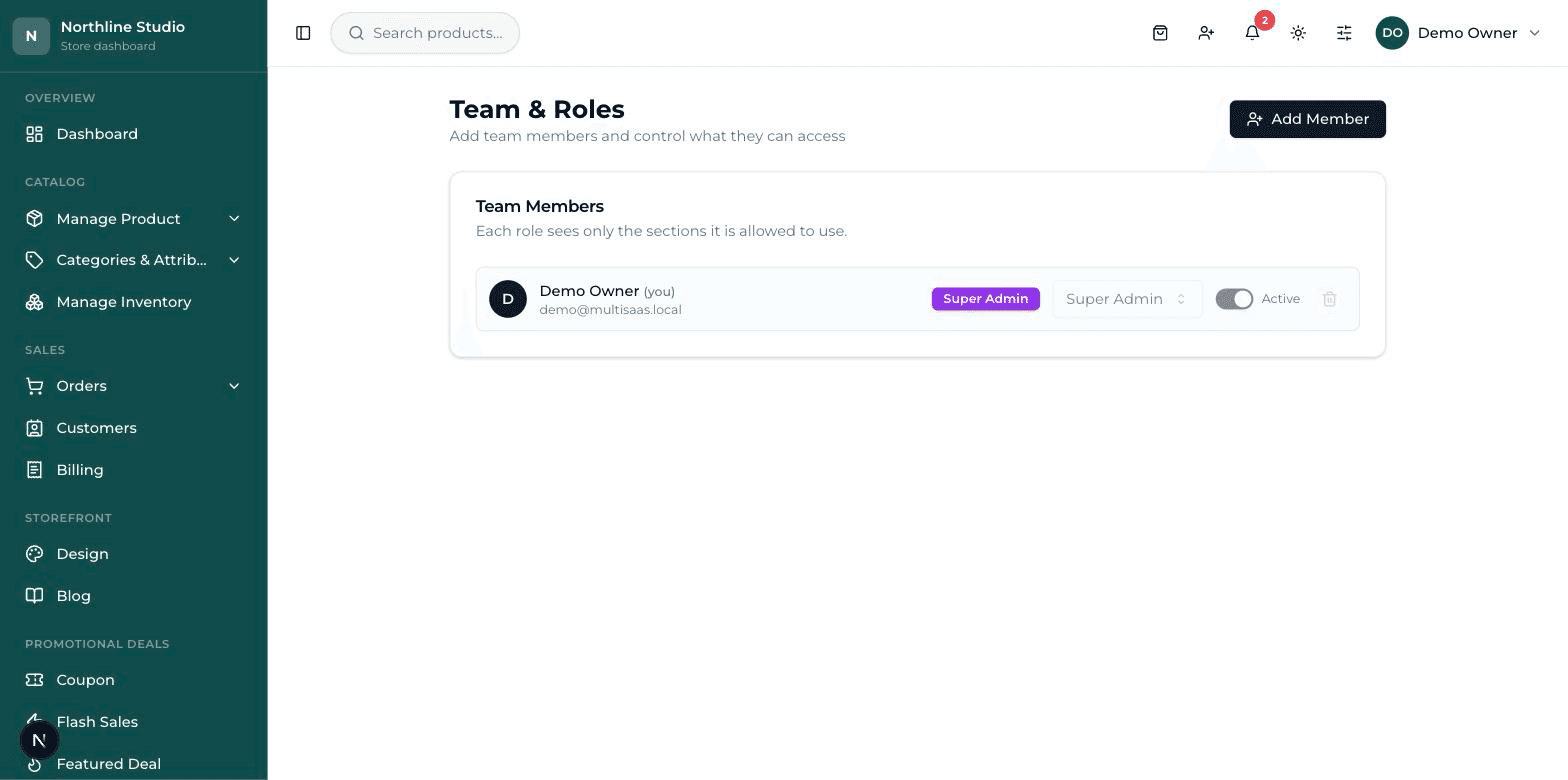
- In the sidebar, under System, click Team. The screen is headed Team & Roles.
- Press Add Member at the top right. A box opens headed Add Team Member.
- Fill in Name and Email. That email is what they sign in with, and where their password reset would go — so it must be an inbox they really open.
- Type a temporary Password. Press the small eye to check what you typed.
- Choose the Role from the dropdown — Admin, Manager, Staff or Accountant. The table below explains each one.
- Press Add Member. A green message says the member was added and their row appears in the list, with a coloured badge showing their role.
- Send them the email and password, and tell them to change the password on their first day from their own Profile screen.
What each role can do#
Give the smallest role that lets the person do their job. You can always move somebody up later; taking access back after something has gone missing is a much worse conversation.
| Role | Can do | Cannot do |
|---|---|---|
| Super Admin (owner) | Everything. The only role that can add or remove staff, change roles, restore from the Recycle bin, empty it, and approve a delete request. | Nothing is closed to it. There is only one per shop, and its row is locked — it cannot be switched off or deleted, not even by itself. |
| Admin | Runs the shop day to day: products, categories, orders (status, courier, address), all Settings, the Design tools, Blog and offers. Deletes things (products, categories and orders go to the Recycle bin). Reads the Team list and the Audit Log. Decides delete requests. | Cannot add, remove or re-role staff, and cannot restore or empty the Recycle bin. Marking an order paid or refunded, and cancelling an invoice, need extra permission (below). |
| Manager | Looks after the catalogue and the shop floor: add and edit products, categories, brands, tags, coupons, home sections and banners; see orders, customers, billing, transactions and reports; at the counter, do returns, book in stock, move stock between branches and read the till report. | No Settings, no Team, no Audit Log, no Recycle bin. Cannot delete anything and cannot change an order's status — it asks, and the owner or an admin decides. |
| Staff (cashier) | Sees the Dashboard, the product list and orders. At the counter: ring up sales, park and recall a bill, open and close the till. | Cannot add or edit a product, cannot delete, cannot change an order, cannot give a discount at the till (a manager has to), cannot do returns. No Customers, Reports, Settings, Team or Audit Log. |
| Accountant | Reads the money side: the Dashboard, orders, Billing, Transactions and Reports. | Changes nothing. No products, no order edits, no deleting, no Settings, no Team, no Audit Log. |
Extra permissions for an Admin#
Two actions touch money directly, so they are kept out of the Admin role and handed over one at a time. Set a member's role to Admin and a small row appears under their name reading Extra permissions, with two switches.
- Refund / Mark Paid — lets them mark an order paid, or refund it. Give this to the person who actually handles the cash and the bank.
- Cancel Invoice — lets them cancel an invoice on the Billing screen.
Changing an email, switching an account off, removing someone#
- Change their login email — click the small pencil next to the address on their row. The dialog is headed Change login email. Type the new address and press Save email. A message is also sent to their OLD address telling them it changed. An Admin can do this too, not only the owner.
- Switch an account off — use the Active switch on their row. It says Disabled and they can no longer sign in, but their name stays on everything they did. This is what to use when someone leaves for a while.
- Remove someone for good — press the red bin on their row. A box asks “Remove team member?” and warns it cannot be undone. Press Yes, remove.
The audit log#
An audit log is a diary the system writes by itself: who did what, and when. Nobody types into it and nobody can edit it. It only records the actions worth arguing about later — money and people — not every click.
- In the sidebar, under System, click Audit Log.
- You get four columns: When, Who (the email and role), Action (a coloured badge) and Details.
- Type in the search box to find a person, an order id or a detail; or narrow it with the dropdown — All actions, Order marked paid, Order refunded, Order deleted, Order details edited, Invoice cancelled, Member role/status changed, Permission changed, Member added, Member removed.
When to reach for it
A price looks wrong and nobody remembers touching it. An order shows as refunded and you did not do it. A staff member says they never had access to something. Open the audit log before asking anyone — it usually answers the question in one line, without an argument.