Payments on an order
How the customer paid, whether the money actually arrived, confirming a bank transfer, and what expired or failed means on a card order.
Every order carries two separate facts about money, and mixing them up is the commonest mistake on this screen.
- The payment METHOD — how the customer chose to pay.
- The payment STATUS — whether the money has actually reached you.
Both are on one line, in the block headed Payment on the order.
The ways a customer can pay#
Three ways work on the website, and you switch each one on or off yourself. Counter sales have their own two, which appear on till orders.
| Shown as | What it means |
|---|---|
| Cash on Delivery | The customer pays the rider in cash when the parcel arrives. Nothing to set up. |
| Card (Stripe) | The customer pays by card on Stripe's own secure page, before the order is confirmed. Needs your Stripe keys. |
| Bank Transfer | The customer sees your bank details, transfers the money themselves, and types a reference. You check it and confirm. |
| Cash / Card / Split (cash + card) | Counter sales only — how the customer standing at your till paid. |
Has the money arrived?#
Next to the method, in colour, is one of four words. This is the one that tells you whether you have been paid.
| Word | What it means | What to do |
|---|---|---|
| Paid (green) | The money is with you. | Nothing. Pack and send. |
| Pending (amber) | Not paid yet. Normal for cash on delivery — the money comes at the door. | For cash on delivery, carry on. For a bank transfer, check your account. |
| Expired — buyer didn't pay (red) | A card order where the customer went to the payment page and left without paying. The order is dead. | Do not send anything. Phone them if it is worth saving. |
| Failed (red) | A card payment was attempted and the bank refused it. | Do not send anything. Ask them to order again. |
Card payments — what you do (nothing)#
Card payments look after themselves. The customer is sent to Stripe's own page, pays there, and the order flips to Paid on its own — even if they close the browser straight after paying. You never handle card numbers, and they are never stored on your shop.
Bank transfer — checking and confirming#
This one is manual, and it is the only one where you decide that the money arrived. The customer sees your bank details at checkout, transfers the money from their own bank, and types the transaction number into a box. The order is placed as Pending.
- Open the order. Under Payment you will see Bank Transfer — Pending, and under it Reference: with the number the customer typed.
- Open your own bank app or statement and find that payment. Match the amount and the reference.
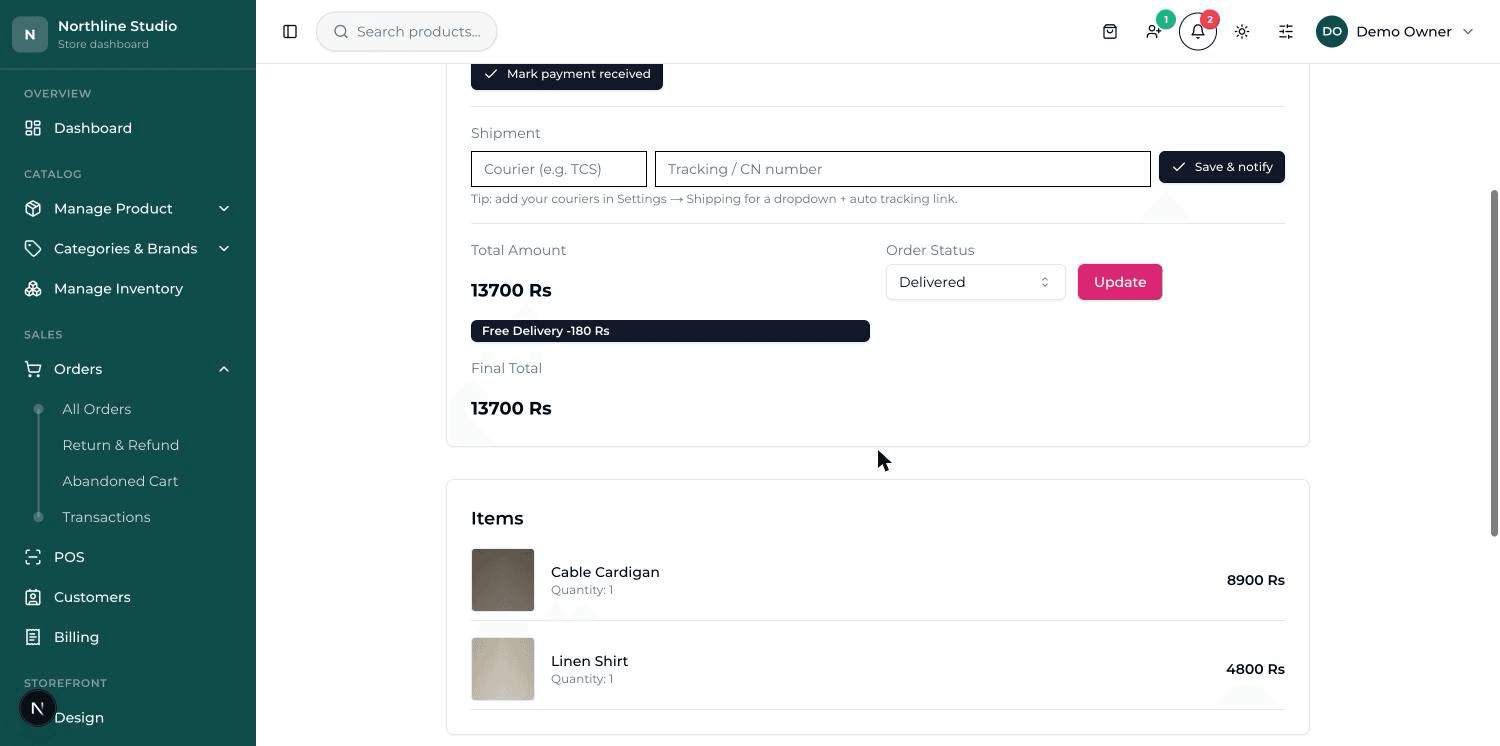
- Only when you can SEE the money in your account, press Mark payment received.
- The Payment line turns green and says Paid. Now pack the order.
Cash on delivery#
The simplest one, and in Pakistan the commonest. The order stays Pending until the rider hands you the money. Some shops then press Mark payment received to close it off; others just mark the order Delivered and leave it. Either is fine — pick one habit and stick to it so your figures mean the same thing every day.
The Transactions screen#
There is a separate money-only view of the same orders, headed Transactions. It shows three boxes — Collected, Pending, Cancelled — and then one row per order with its amount and payment.