When something goes wrong
Getting back something you deleted, asking the owner to delete something, taking your own backups, and what your plan allows.
This is the page for the bad afternoon. Something got deleted, or a screen said no. Read it once now, while nothing is wrong — it is much harder to read carefully with a customer on the phone.
The Recycle bin#
Deleting a product, a category or an order does not destroy it. It goes to the Recycle bin and waits there for 30 days, then goes for good on its own. That is why the delete dialog for those three says “It goes to the Recycle bin” instead of “This cannot be undone”.
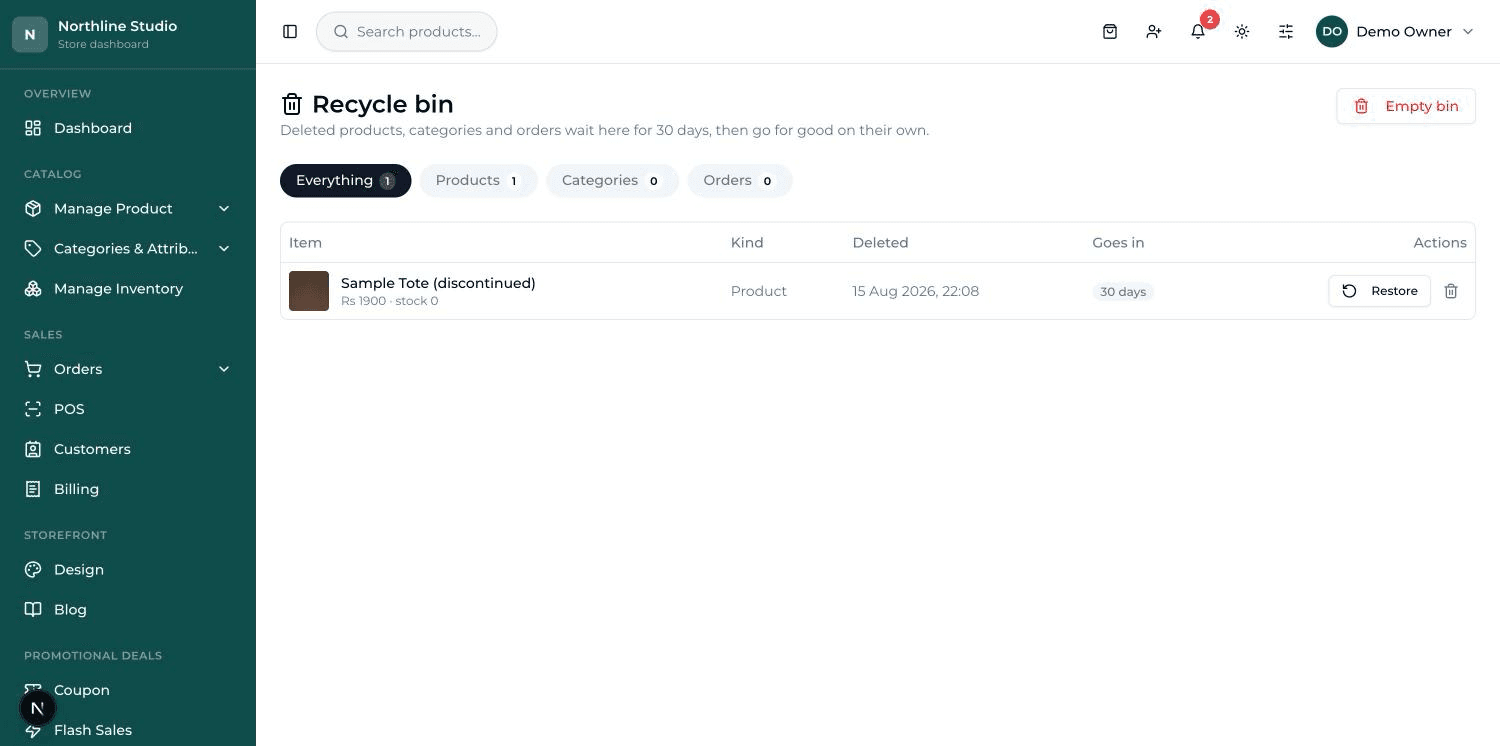
- The tabs across the top — Everything, Products, Categories, Orders — each show a count. Click one to see just that kind.
- The Deleted column says when it went in and who deleted it, so you know who to ask.
- The Goes in column is the days left. It turns red at 3 days or fewer — that is your last warning before it goes on its own.
Putting something back#
- Open Recycle bin and find the row. Check the name and the picture — the bin is full of things somebody meant to remove, so the rows look alike.
- Press Restore on that row.
- A green message says it was restored and the row disappears from the bin. The product is back in your product list — and back on your public website.
Delete forever, and Empty bin#
The small bin icon on a row is Delete forever, and the button at the top right empties the whole tab you are looking at. These are the only two buttons in the whole dashboard with nothing after them.
What does NOT go to the bin#
Only three things are recoverable: products, categories and orders. Everything else is destroyed the moment you confirm — brands, tags, coupons, flash sales, featured deals, promo popups, home sections, home banners, reviews, returns, and team members.
Delete requests#
A manager, a cashier and an accountant cannot delete anything. When one of them presses a bin icon they do not get a refusal — they get a box headed “Ask the owner to delete this?” with a Why? space, and a Send request button.
- The owner (or an Admin) opens Delete requests from the sidebar, under System. A red number on the menu shows how many are waiting.
- The Pending tab lists them: what kind of thing it is, its name, the reason, who asked and when. Read the reason — it is the whole point of the screen.
- Press Approve to allow it. A box asks to confirm and names the thing; you can add a note. Press Delete.
- Press Reject to refuse. Write a note saying why — the person who asked reads it.
- Either way the row moves to the Handled tab, showing Approved or Rejected, who decided and when. Clear a row later with the small bin icon.
Backups#
A backup is a snapshot of your whole shop — products, orders, customers, content and design — saved as one file. Take one before any big change: a bulk price edit, a big import, a design switch.
- Open Settings and scroll to the bottom, to the card headed Data Backup.
- Type a short label if you like — something like “before menu update” — so you recognise it later.
- Press Back up now. It takes a few seconds, then the backup appears in the list below with its date, its size and a summary such as “66 products · 20 orders”.
- Press Download on a row to save the file onto your own computer. Do that — a backup that lives only in the same place as your shop is only half a backup.
My Plan — and where its limits show up#
Your plan is what you pay your provider for, and it sets two numbers: how many products you may have, and how many team members. Open My Plan from the sidebar, under System.
- The Current plan card shows the plan's name, whether it is One-time, Monthly or Yearly, and two bars — Products and Team members. Each bar reads “used / allowed”. The bar is green, turns amber near the limit and red once it is full.
- “Unlimited” means there is no cap on that one.
- Under that, Available plans lists what you could move to, each with its price and its two numbers. Request this plan opens a message to your provider — nothing changes until they set it up after payment.
The limit does not announce itself in advance. You meet it when you try to do the thing:
- Adding a product — Add Product fails with a red message saying your plan allows up to N products.
- Adding a team member — Add Member fails the same way, saying your plan allows up to N team members.
- Importing products from a file — the preview tells you how much room is left before anything is imported, so you find out first rather than half-way through.
If a screen says no
There are only three reasons the dashboard refuses you: your role does not allow it, your plan is full, or the area is switched off for your shop. The red message always says which one. Read it before assuming something is broken — and if it is your plan or a switched-off area, that is a conversation with your provider, not a bug.