Signing in
Open your dashboard, sign in for the first time, and change the password you were given.
Opening the dashboard#
Your provider sent you a dashboard link along with an email address and a password. The link is your shop's own web address with /admin/login added to the end.
- Open the link in any browser — Chrome, Safari, or whatever you normally use.
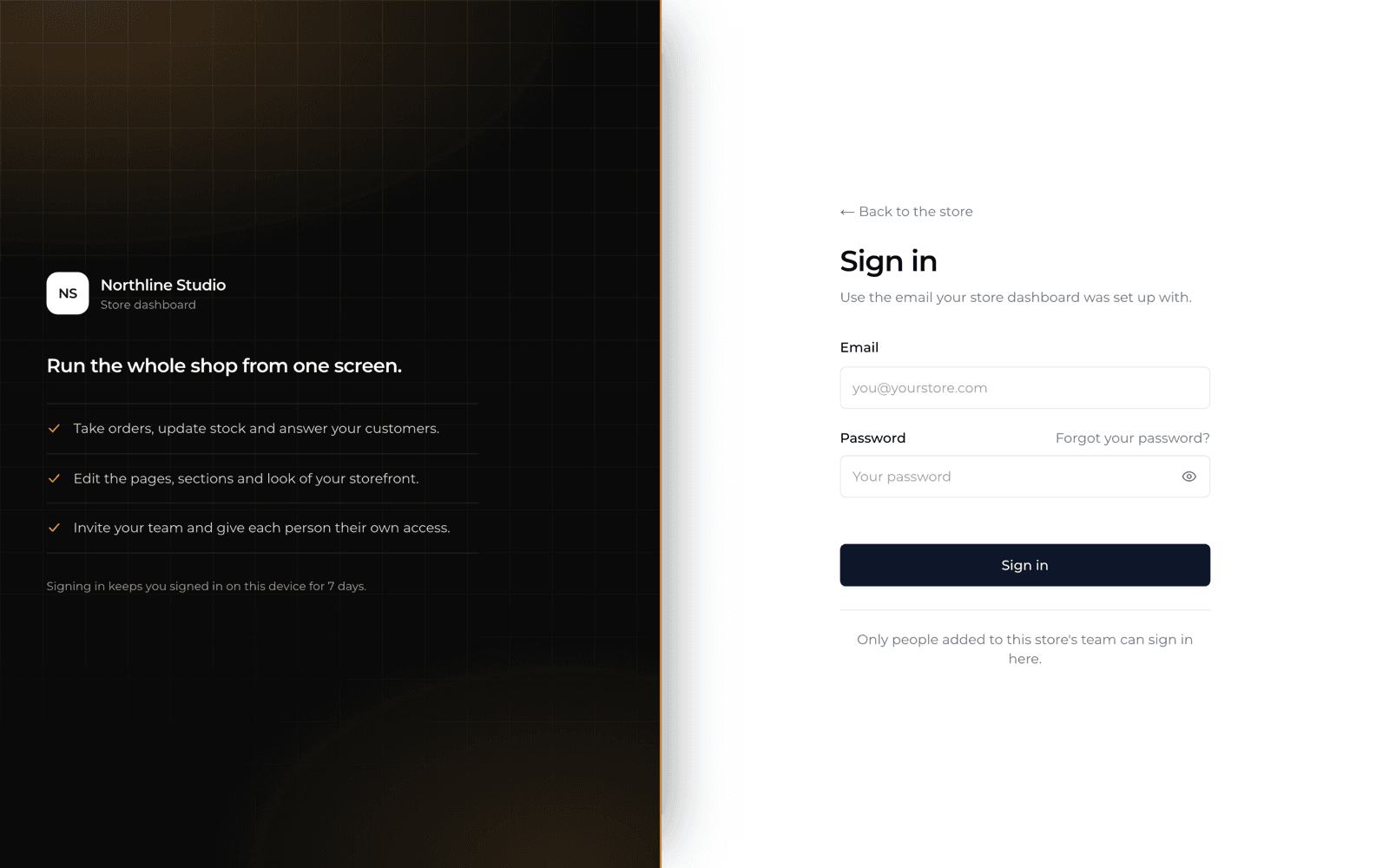
- The screen splits in two: your shop's name on a dark panel, and on the right a box headed Sign in.
- Save this link in your browser's bookmarks. You will open it every day.
Signing in for the first time#
- Type your email address in the first box (it says Email).
- Type the password you were given in the second box (it says Password). To check what you typed, press the small eye on the right of the box.
- Press Sign in.
Sign inEmailPasswordSign in
It worked when the page changes to a screen headed Dashboard, with a dark menu down the left side and a green message saying you signed in. That is your shop's back office.
If a red message says the email or password is wrong, check for a space at the start or end of what you typed, and that Caps Lock is off. If you try many times quickly it will ask you to wait about a minute before trying again.
Change the password you were given#
Do this on your first day. The password your provider gave you has been typed into a message and read by someone else — make it yours.
- At the top right of the screen, click your name (or the small round circle with your initials).
- In the menu that drops down, choose Profile.
- Scroll down to the card headed Change password.
- In Current password, type the password your provider gave you.
- In New password, type your own new password. Type it again in Confirm new password so it can check you did not mistype.
- Press Update password. A green message says the password was changed.
TopbarProfileChange passwordUpdate password
The form tells you the shortest password it will accept. Use something you will remember but nobody can guess — not your shop name, not 12345678.
Never give your password to anyone, and do not share one login with your staff. Every person who works with you should have their own login — that is what the Team screen is for.
Change your login email#
The email you sign in with is also where a password reset is sent, so it must be an inbox you actually open. It is changed on the same Profile screen.
- Open Profile from your name at the top right.
- In the card headed Login email, type the new address in Email.
- Type your password in Current password underneath — this is how it knows it is really you.
- Press Update email.
TopbarProfileLogin emailUpdate email
A short message is sent to your OLD address telling it the login email changed, and you stay signed in. From your next sign-in, use the new address.
If you forget your password#
- On the login screen, click Forgot your password? underneath the Login button.
- Type your login email in the Email box and press Submit.
- The page changes to Check your email. Open your inbox and click the link in the message.
- Type your new password twice, save it, then sign in with it.
Sign inForgot your password?EmailSubmit
That link stops working after 15 minutes and can only be used once. If it says the link has expired, press Request a new link and use the fresh one. Only one email is sent every 15 minutes, so pressing Submit again will not send another — check your spam folder instead.
Signing out#
- Click your name at the top right.
- Choose Logout at the bottom of the menu (it is in red).
Always sign out on a shared or borrowed computer. On your own phone or laptop you can stay signed in — it saves typing your password every day.