A tour of the dashboard
What every part of the screen is for, and when you would go there.
The dashboard has a lot in it, but it never moves. Once you know these three parts, you can find anything.
The three parts of the screen#
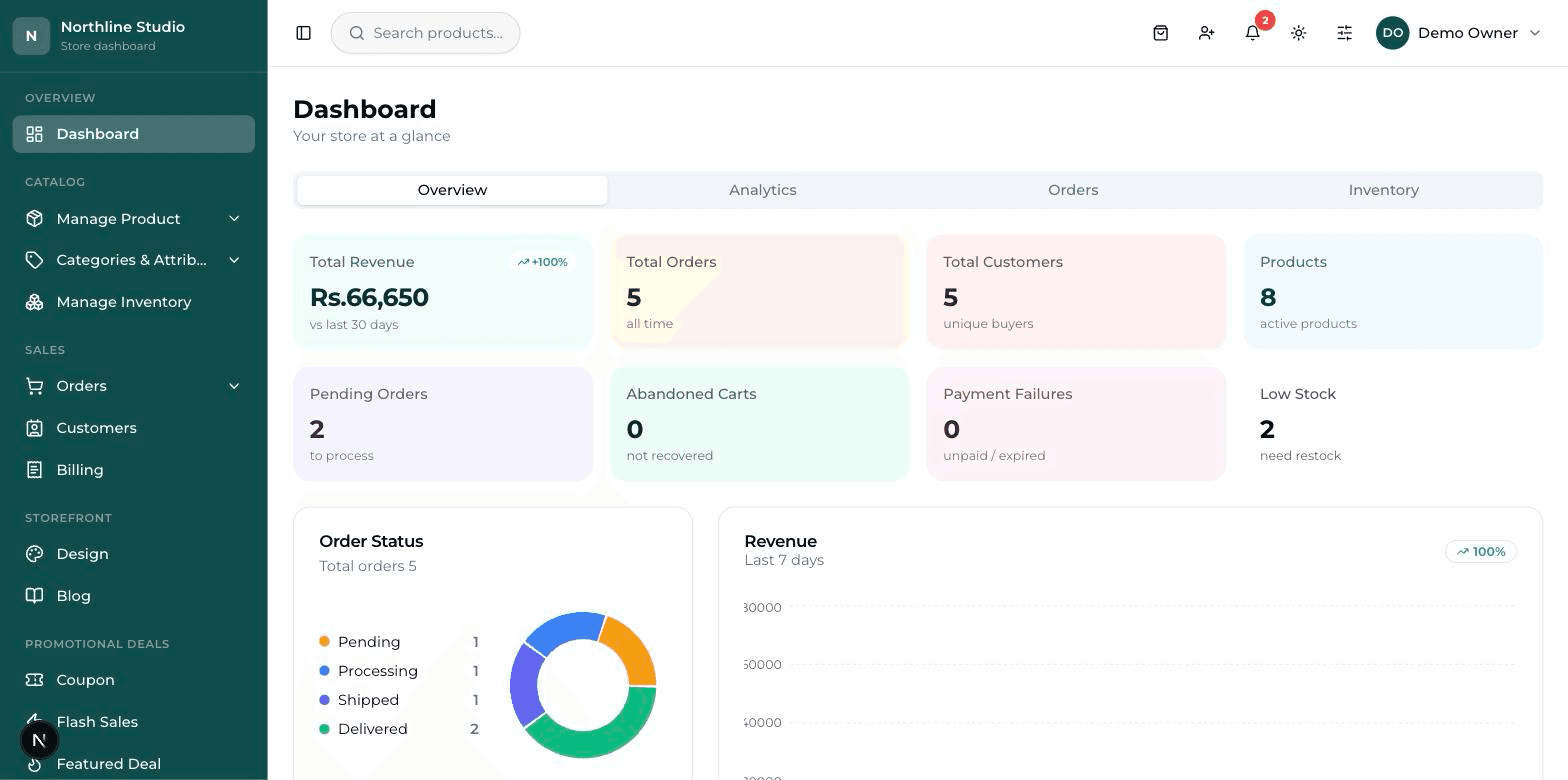
- The sidebar — the dark strip down the left. This is the menu; every screen in the dashboard is reached from it.
- The top bar — the strip across the top. Search, alerts and your own account live here, and it stays on screen wherever you go.
- The work area — the big space in the middle. Whatever you picked in the sidebar opens here.
The top bar#
- Search products… — type a product name, or the name of a screen like "theme" or "payment", and jump straight to it.
- New orders — the bag icon. A red number on it means orders have come in since you last looked. Click it to see them.
- New customers — the person icon. Shows people who made an account on your website.
- Low stock — the bell. Tells you which products are about to run out, so you can order more in time.
- Your Plan — a small badge showing your current plan and how much of it you have used.
- The sun / moon button switches the dashboard between light and dark. It changes nothing on your website.
- Your name at the far right opens Profile, Settings, Billing, Team and Logout.
The sidebar, group by group#
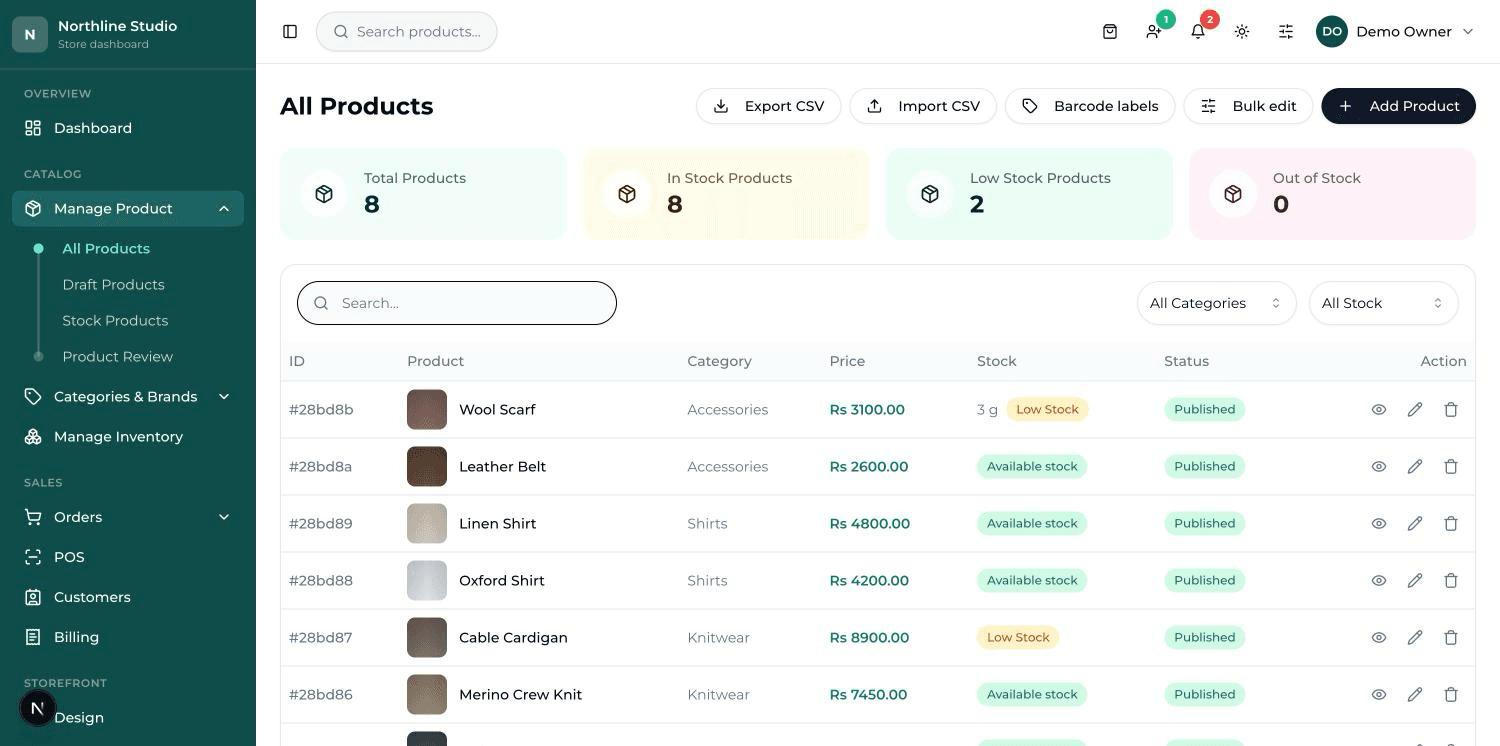
The menu is split into small groups with a grey title above each one. Items with a small arrow open a short list underneath when you click them.
Overview#
Dashboard is your morning screen. It shows money taken, how many orders, how many customers, which orders are still waiting, and what is running low — with the four tabs Overview, Analytics, Orders and Inventory for a closer look. Start here every day.
Catalog — the things you sell#
- Manage Product → All Products — every product you have. This is where you press Add Product, and where you edit a price or a photo.
- Manage Product → Draft Products — products you started but have not put on the website yet. Nobody can see these. Press Publish when one is ready.
- Manage Product → Stock Products — one list of what you have left of everything, and a button to download it.
- Manage Product → Product Review — what customers wrote about your products. You approve or reject each one before it shows on the website.
- Categories & Brands → Category List — the groups your products sit in (Shirts, Drinks, Chargers). Customers use these to browse.
- Categories & Brands → Brand List — the makers whose goods you carry, so a shopper can see everything from one of them.
- Manage Inventory — stock and how many of each thing have sold, in one table.
Sales — money coming in#
- Orders → All Orders — every order. Open one to see what was bought, print an invoice or packing slip, add the courier and tracking number, and move it along: Pending → Processing → Shipped → Delivered.
- Orders → Return & Refund — when a customer wants to send something back, the request lands here for you to approve or reject.
- Orders → Abandoned Cart — people who filled a cart and left without paying. You can send them a reminder email.
- Orders → Transactions — the payment record for each order.
- POS — the counter till, for selling to someone standing in front of you. It uses the same products and the same stock as the website. Not every shop has this.
- Customers — everyone who has bought from you, and what each of them ordered.
- Billing — the invoice for every order in one list, ready to view, print or download.
Storefront — how the website looks#
- Design — one screen with a tile for every part of the look: Theme & Colors, Typography, Pages, Home Banners, All Products, Collections, Product Detail Page, Product Cards, Blog Display, Navigation, Footer, Cart, Checkout and SEO / Meta. A small lock on a tile means your provider looks after that one.
- Blog — write and publish articles, if your shop has the blog switched on.
Promotional Deals — discounts and offers#
- Coupon — discount codes a customer types at checkout, like a percentage off or a fixed amount off.
- Flash Sales — a discount on chosen products that starts and ends at a time you set.
- Featured Deal — a highlighted offer, either a percentage off or buy-one-get-one.
- Promo Popup — the small box that appears on the website to announce something.
Insights#
Reports gives you the longer view for a period you choose: revenue over time, top products, sales by category, and orders by status.
System — the shop's own settings#
- Team — your staff. Add a person, give them a role, and each one gets their own login. Only the owner account can add people.
- Audit Log — a record of who changed what and when. Useful when something looks different and nobody remembers touching it.
- Delete requests — staff who are not allowed to delete something ask here, and the owner approves or rejects it.
- Recycle bin — deleted products, categories and orders wait here for a while before going for good. This is where you undo a wrong delete.
- My Plan — your current plan, how many products and team members it allows, and how much of that you have used.
- Settings — everything that is not a design choice: General, Theme, Typography, Meta & SEO, Navbar, Email, Analytics, Payments, Shipping and Storefront extras.
"I want to… — where do I go?"#
| I want to… | Go here |
|---|---|
| Put a new item up for sale | Manage Product → All Products → Add Product |
| Change a price | Manage Product → All Products → open the product |
| See today's orders | Orders → All Orders |
| Tell a customer their parcel is on the way | Orders → All Orders → open the order → Shipment |
| Give a discount code | Coupon → Create Coupon |
| Change the colours of the website | Design → Theme & Colors |
| Change the big picture on the homepage | Design → Home Banners |
| Change the shop name, logo or delivery charge | Settings → General, and Settings → Shipping |
| Give a staff member a login | Team → Add Member |
| Get back something I deleted | Recycle bin |
Why your sidebar may not match this page#
Two shops rarely have the same menu, and that is normal. Three things decide what you see.
- Parts your shop does not use are switched off — POS, Blog, Product Review and Collections are each turned on or off for your shop, and an item that is off disappears from the menu completely.
- Your role decides the rest. The owner account sees everything; a manager, a cashier or an accountant only sees the part of the shop they work in.
- Some designs are locked by your provider. The tile is still there in Design, with a small lock — you can look, but not switch to it.